
Everything you need to use HubProspect, the free Chrome extension that saves LinkedIn profiles, companies and conversations to HubSpot. Can’t find your answer? Write to us.
Connect HubSpot
- Install HubProspect from the Chrome Web Store.
- Open LinkedIn. A window asks you to “Connect HubSpot to get started”. You can also click the HubProspect icon in the Chrome toolbar and click “Connect HubSpot”.
- Sign in to HubSpot and approve access. You sign in on HubSpot’s own page; we never see your password.
- The tab closes and you are connected. Open any LinkedIn profile to start.
HubProspect works with any HubSpot account, including the free CRM. HubProspect adds five contact properties to your HubSpot, with names ending in “(HubProspect)”. They keep track of what was already synced from conversations. Please don’t delete them while you use HubProspect.
Tip: pin the HubProspect icon to the toolbar (click the puzzle icon, then the pin), so you can always reach it.
The Card
The Card is the HubProspect panel under the header of a LinkedIn profile or company page.
On a profile:
- While it looks, the Card shows “Checking HubSpot…”. Then it shows “In HubSpot”, with “Open in HubSpot”, or “Not in HubSpot yet”.
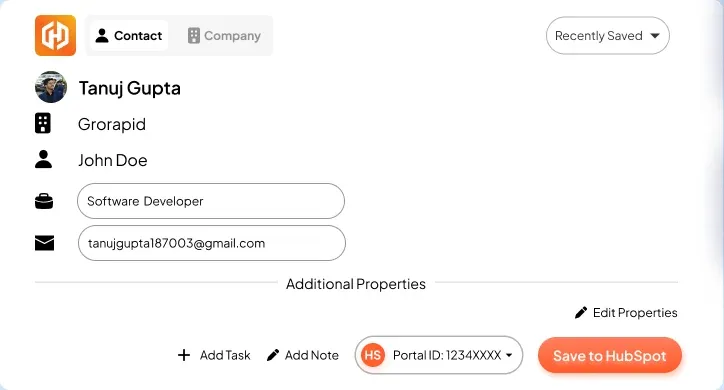
- The Card fills in what LinkedIn shows: name, job title, company, location and LinkedIn URL. You can add an email, phone and owner.
- Click “Save to HubSpot”. If the person is already in HubSpot, the button reads “Update in HubSpot”.
- The person’s company is found in HubSpot, or created, and linked to the contact.
- Saving only sends the fields you changed, so values already in HubSpot are not overwritten.
Duplicates: before saving, HubProspect looks for the person by LinkedIn member ID, LinkedIn URL, email, and name plus company. If it finds one, the “Already in HubSpot” window shows the contact and what it matched on. Pick “Update this contact” or “Create a second contact”.
On a company page: the Card shows the company’s name, website, industry, location and LinkedIn page. Click “Save company”, or “Update company” when it is already in HubSpot. The Company tab on a profile saves that person’s company in the same way.
Recently saved: the Card’s “Recently saved” menu lists your last five saves for the Portal you are using, with a link to each record.
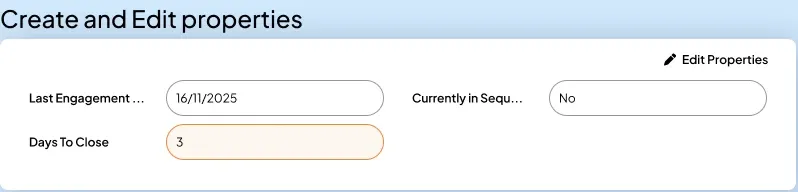
Additional properties
Fill in any HubSpot property from the Card, including custom ones.
- Under “Additional properties”, click “Edit properties”.
- Search for a property and pin it. Pin as many as you need, then click “Done”.
- Fill in the values. They go to HubSpot with your next “Save to HubSpot”.
No property with that name? Click “Create property”, choose Text or Number, and HubProspect creates it in your HubSpot.
Contact properties and company properties are pinned separately. Your pins come back the next time you open the same profile.
Notes and tasks
On a profile, you can add a note and a follow-up task while you save the contact.
- Note: click “Add note” and type. The note is saved on the contact when you click “Save to HubSpot”.
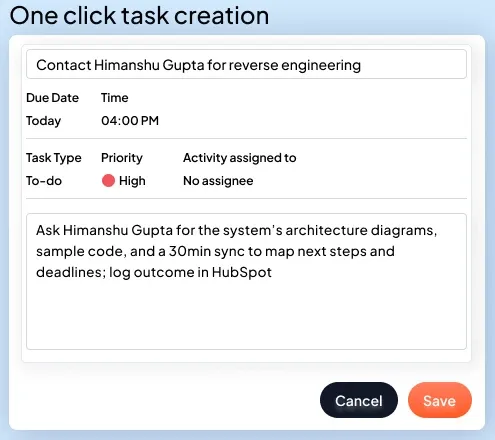
- Task: click “Add task”. Fill in the task title, due date, time, task type, priority, who it’s assigned to and a description, then click “Add”. The task is created on the contact when you click “Save to HubSpot”.
Log conversations with the Chat card
The Chat card sits above the message box in a LinkedIn chat window and on full-page conversations (linkedin.com/messaging). It shows one button:
| Button | When | What it does |
|---|---|---|
| “Connect HubSpot” | You are not connected | Connects HubSpot |
| “Add to HubSpot” | The person is not in HubSpot | Creates the contact |
| “Sync messages” | The person is in HubSpot | Logs the new messages on the contact |
How Sync works:
- The first Sync logs the whole conversation. Later Syncs add only messages that are new since the last one, from both sides.
- Messages are grouped by your local day: one LinkedIn message activity per contact per day.
- When it is done, the button shows how many messages were logged, for example “3 messages synced ✓”, or “Already up to date ✓” when there was nothing new.
- Shared LinkedIn posts and web links are logged with their text and link. Images, files, videos and voice messages are named, not copied.
- Nothing is synced until you click. A conversation is never synced in the background.
Switch between Portals
If you work in more than one HubSpot account (a Portal), connect each one.
- To add a Portal: in the Card’s Portal picker, choose “Add account” and sign in to the other HubSpot account.
- To switch: pick the Portal in the Card’s Portal picker. The Card checks the new Portal straight away, and saves and Syncs go there.
- To see where you are connected: click the HubProspect icon. It shows your HubSpot email and the Portal.
- To remove one: click the HubProspect icon and click “Disconnect”, or “Disconnect all accounts”.
Troubleshooting
“Session expired. Reconnect to continue.” HubSpot ended the connection. Click the HubProspect icon and click “Reconnect HubSpot”.
“HubSpot refused the request. Reconnect from the HubProspect icon in the toolbar.” The connection is missing a permission, or access was removed in HubSpot. Click the HubProspect icon and reconnect.
“Not connected. Connect HubSpot from the HubProspect icon in the toolbar.” Click the HubProspect icon and click “Connect HubSpot”.
The Card is missing
- Refresh the page. LinkedIn loads pages in pieces, and a refresh usually brings the Card back.
- Check you are on a profile (linkedin.com/in/…) or a company page (linkedin.com/company/…). The Card does not appear on Sales Navigator or Recruiter pages.
- Check HubProspect is turned on at chrome://extensions.
“HubProspect was updated. Refresh the page to keep using it.” A new version was installed while the page was open. Refresh the page.
The Card looks wrong or fields are empty after LinkedIn changed LinkedIn changes its pages from time to time. If the Card sits in an odd place or a field LinkedIn shows stays empty, refresh the page first. If it keeps happening, tell us which kind of page it was (profile, company or messages) and we’ll fix it.
“Too many requests. Wait a moment and try again.” HubSpot limits how fast any app can search your account. Wait a few seconds and try again.
“Could not find the last synced message in this conversation. Scroll up to load more history and try again.” Scroll up in the conversation so LinkedIn loads older messages, then click “Sync messages” again.
A property I deleted in HubSpot is gone from the Card That’s expected. When a pinned property no longer exists in HubSpot, the Card drops it so saving keeps working.
Uninstall and delete your data
Uninstall: right-click the HubProspect icon and choose “Remove from Chrome”, or remove it at chrome://extensions. This deletes HubProspect’s data in your browser. A short, optional form then asks why you left.
Disconnect HubSpot: click the HubProspect icon and click “Disconnect”. You can also remove HubProspect in HubSpot under Settings, Integrations, Connected apps. Either one stops the extension from reaching your account.
Delete your data on our server: email hello@grorapid.com and tell us the email on your HubSpot user. We delete your records within 30 days: your connection, your usage counts and any feedback you sent. The record of the HubSpot account itself stays while other people from that account still use HubProspect.
What stays in HubSpot: contacts, companies, notes, tasks and conversations you saved are in your own HubSpot and stay there. You can delete them, and the “(HubProspect)” contact properties, in HubSpot as usual.
What we store and why: privacy policy.
Contact
Questions, bugs or ideas: email hello@grorapid.com or use our contact page. If something broke, tell us the page you were on (profile, company or messages) and the message you saw. Please don’t send screenshots with other people’s details in them.
HubProspect is free and built by Grorapid Labs, a HubSpot solutions partner agency.